PolyTrack settings guide
How to Turn Off the Ghost Car in PolyTrack
To turn off the ghost car in PolyTrack, open the game's Settings menu and disable its ghost-car option. The visible ghost and its sound effects are separate settings in the documented release notes, so check both if you want a quieter, less crowded run.
Short answer
Where is the ghost-car setting?
Open PolyTrack's Settings menu and turn off the option for the ghost car. Kodub's PolyTrack 0.3.0 update notes list a Settings menu and an option to disable the ghost car. The basic path is therefore Settings, find the ghost-car control, switch it off, then return to a race and check the result.
If you are searching for how to turn off the ghost car in PolyTrack because the track feels visually busy, change the visual ghost option first. The later PolyTrack 0.6.0 notes list a separate setting to disable ghost-car sound effects. Muting that sound does not necessarily hide the car, and hiding the car does not automatically mean every game sound is muted.
Menu placement and labels can differ between builds or hosted versions. The notes verify that the setting exists in the documented game updates, but they do not guarantee that every third-party embed exposes the same menu. If the option is missing, use the troubleshooting checks below before assuming the setting has been removed.
Step-by-step
Turn off the ghost car in four checks
Use the menu in the game build you are currently playing. These steps do not require a browser extension, a download, or a change to your driving controls.
Open the game's Settings menu
Pause or return to the menu if needed, then choose Settings. The documented 0.3.0 notes confirm a Settings menu, but the exact route into it can vary by version and host.
Find the ghost-car option
Look through gameplay or general options for the control that disables the ghost car. Do not confuse it with graphics, audio, or camera controls; the release note names the ghost-car option separately.
Switch the visual option off
Change the ghost-car setting, then leave the menu. If the control is a checkbox, leave it unchecked; if it is a toggle, use the off state shown by your build. The appearance of controls is not identical in every version.
Test a short race
Start or resume a track and look at a familiar section. If the extra car is gone, the display change worked. Reopen Settings to verify the value if the ghost is still visible.
Two separate controls
Visual ghost and ghost-car sound are not the same setting
The phrase ghost car can refer to the on-track visual that helps compare a run with another recorded or opponent time. If that moving car distracts you, disable the visual ghost-car option. This is the setting to check when your goal is a clearer view of the road, corners, ramps, or your own car.
Kodub's later 0.6.0 update notes separately list a setting to disable ghost-car sound effects. If you still want the visual comparison but do not want its sound, look for that sound control instead. If you want both changes, review both options; changing one does not prove the other changed.
The update notes do not specify that the visual toggle changes lap timing, physics, saved runs, or leaderboard records. Treat it as a display preference and verify the result in a short run. Avoid making a competitive comparison from a different game version or host unless the track, opponent, and settings are comparable.
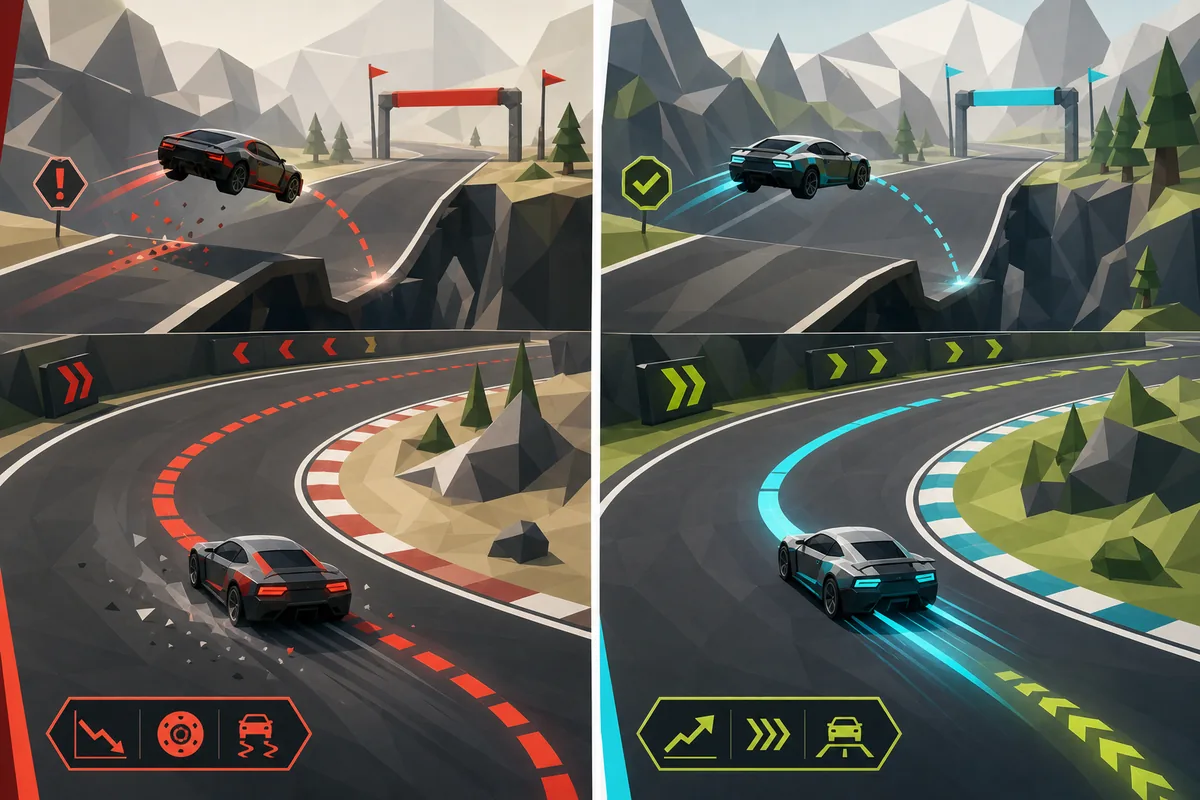
Hide the car
Choose the visual ghost-car option when a translucent car or trail blocks your view of the racing line.
Mute its effects
Choose the separate ghost-car sound option when you want to keep the visual reference but remove its sound effects.
What to expect
What changes after the ghost is disabled?
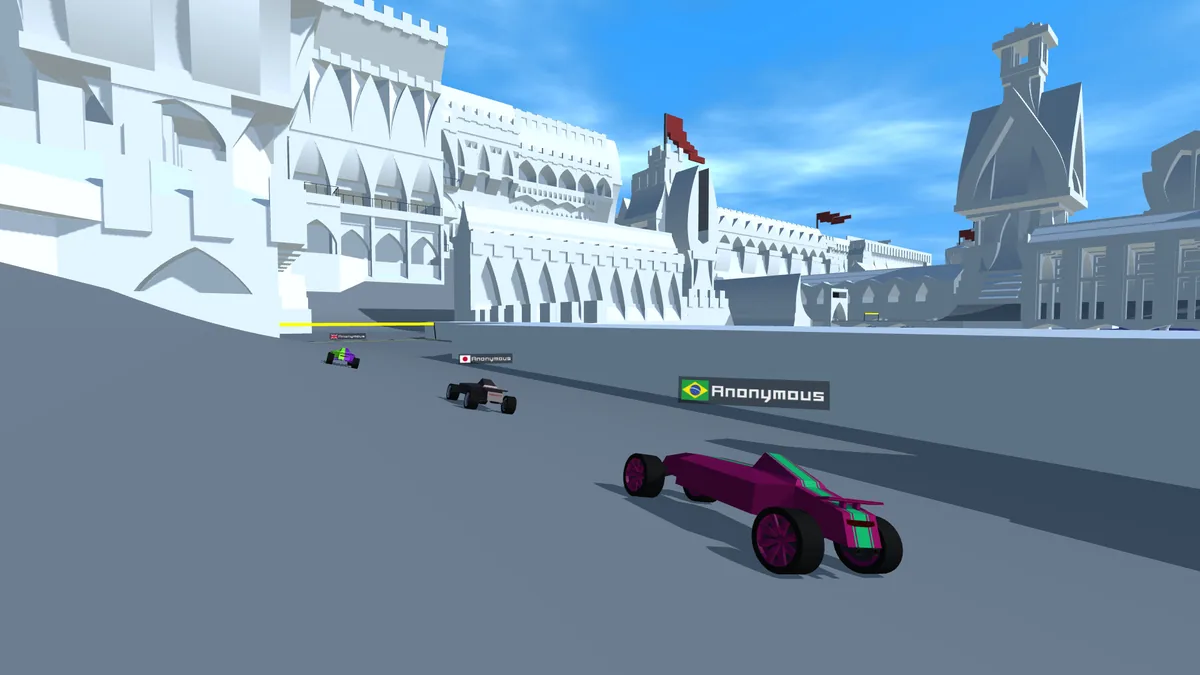
The intended visible change is that the ghost car no longer appears as a moving comparison target during play. Your own car, road, checkpoints, and track remain the things to watch. The source notes call this an option to disable the ghost car; they do not describe a change to the track itself.
A ghost is helpful when you want to see where another run gains distance, but it can compete with the road for attention. Turning it off is reasonable for learning a new track, practicing a narrow section, or simply driving without an overlay. You can turn it back on later if comparison becomes useful again.
Do not assume every other car on screen is the ghost. In a multiplayer or replay context, another profile, replay, or opponent may be displayed independently. If a car remains after the setting changes, first identify the mode and source of that car rather than changing unrelated graphics or camera options.
If it does not work
Why the ghost car may still appear
Check the active build and the type of on-screen car before changing unrelated settings or installing anything.
| What you see | What to check | Next step |
|---|---|---|
| There is no ghost option | Confirm that you opened the in-game Settings menu rather than only browser or host settings. | Return to the title/menu screen if necessary and inspect the current build's Settings. Use the official update notes as context, not as proof that every mirror has the same version. |
| The ghost remains after switching it off | Check the toggle state again and make sure the setting was applied before returning to the race. | Change the option once more, leave Settings, and test a short run. Avoid rapidly switching between unrelated graphics controls. |
| Another car is still on track | Determine whether you are in multiplayer, watching a replay, or using an opponent comparison. | Leave that mode or replay if you want a solo view. The ghost-car option may not remove another player's car. |
| The car is gone but its sound remains | The visual ghost and ghost-car sound effects have separate documented controls. | Look for the sound-effects option in Settings as well. Do not use master volume unless you intend to mute other game audio. |
| Settings look different in an embed | The host may serve a different build or expose a different menu flow. | Try the creator-linked game source and compare its Settings menu. Do not install an unknown extension or file to reveal a hidden toggle. |
Source check
What the release notes verify
Kodub's PolyTrack 0.3.0 update notes list the Settings menu and an option to disable the ghost car. The PolyTrack 0.6.0 notes later list a separate setting for disabling ghost-car sound effects. These first-party notes support the distinction between the visual car and its sound; they do not promise that every hosted copy has identical controls today.
This page is an independent guide, not an official Kodub support page. When a menu label, location, or option differs, use the current creator-linked build as the reference and avoid treating a third-party mirror as authoritative.
FAQ
PolyTrack ghost-car questions
How do I turn off the ghost car in PolyTrack?
Open the in-game Settings menu, find the ghost-car option, switch it off, and test a short race. Kodub's 0.3.0 update notes document an option to disable the ghost car.
Can I turn off the ghost car but keep its sound?
The notes document the visual ghost-car option and, in a later update, a separate setting for ghost-car sound effects. Check each control independently in your build.
Does turning off the ghost car change my car or lap time?
The cited update notes describe a setting to disable the ghost car, not a change to vehicle behavior or timing. Test the current build and avoid assuming that a display preference changes physics or records.
Why can I still see another car after disabling the ghost?
It may be another player, a replay, or a different opponent display. Check the current mode and leave multiplayer or replay viewing if you want a solo view.
Why is the ghost setting missing from my game?
A hosted version may use a different build or menu flow. Check the creator-linked game and inspect its Settings; the release notes do not guarantee that every mirror exposes the same controls.
Will the setting stay off on every track?
The cited notes do not specify whether the preference persists across sessions or hosts. Recheck Settings after a reload or version change instead of assuming it was saved globally.