Custom maps and track codes
PolyTrack Tracks Guide: Custom Maps, Codes, and Import Tips
PolyTrack tracks are the main reason the game stays replayable after the first few runs. This guide explains how to choose custom maps, import track codes, test editor creations, and avoid broken or unsafe mirror claims before you race.
Short answer
What are PolyTrack tracks and custom maps?
PolyTrack tracks are playable racing layouts built from road pieces, jumps, checkpoints, scenery, and finish logic inside the game. Official tracks give you a baseline for driving, while custom tracks let the community create new routes, stunt challenges, full-speed maps, precision layouts, and joke courses that would never fit inside a small default campaign.
Most players search for PolyTrack tracks when they want one of three things: a new map to import, a track code that someone shared online, or advice on building a better layout in the editor. A track code is usually a long text string that stores the track layout. You copy it from a trusted page or community post, open the PolyTrack editor or custom track area, paste the complete code, and test whether the map loads correctly.
The important detail is that a code is only useful if it matches the PolyTrack version you are playing and was copied completely. If the code is truncated, changed by a chat app, or made for a different build, the map may fail to load or behave oddly. Keep a plain-text copy, compare the source, and avoid pages that turn a simple browser game into an installer or extension download.
Map choice
Choose the right PolyTrack track before importing
Custom maps vary a lot. Pick the type that fits your current skill level so the first session is useful instead of frustrating.
| Track type | Best for | Watch for |
|---|---|---|
| Beginner flow tracks | Learning steering rhythm, braking points, and checkpoint order without heavy restart pressure. | Overly narrow turns that punish new players before they understand the car. |
| Full-speed tracks | Practicing racing lines, smooth landings, and speed control through long connected sections. | Blind jumps where a small early mistake ruins the entire run. |
| Technical or precision maps | Advanced players who want tight corners, wall rides, small platforms, and repeated micro-adjustments. | Layouts that are impressive but not readable on the first few attempts. |
| Stunt and loop maps | Testing air control, vertical sections, and unusual editor pieces. | Version mismatch, because physics changes can break older stunt routes. |
Import workflow
How to import a PolyTrack code cleanly
A careful import flow saves time. The goal is to prove that the code is complete, the version is close enough, and the route can be played before you spend a full session chasing a broken map.
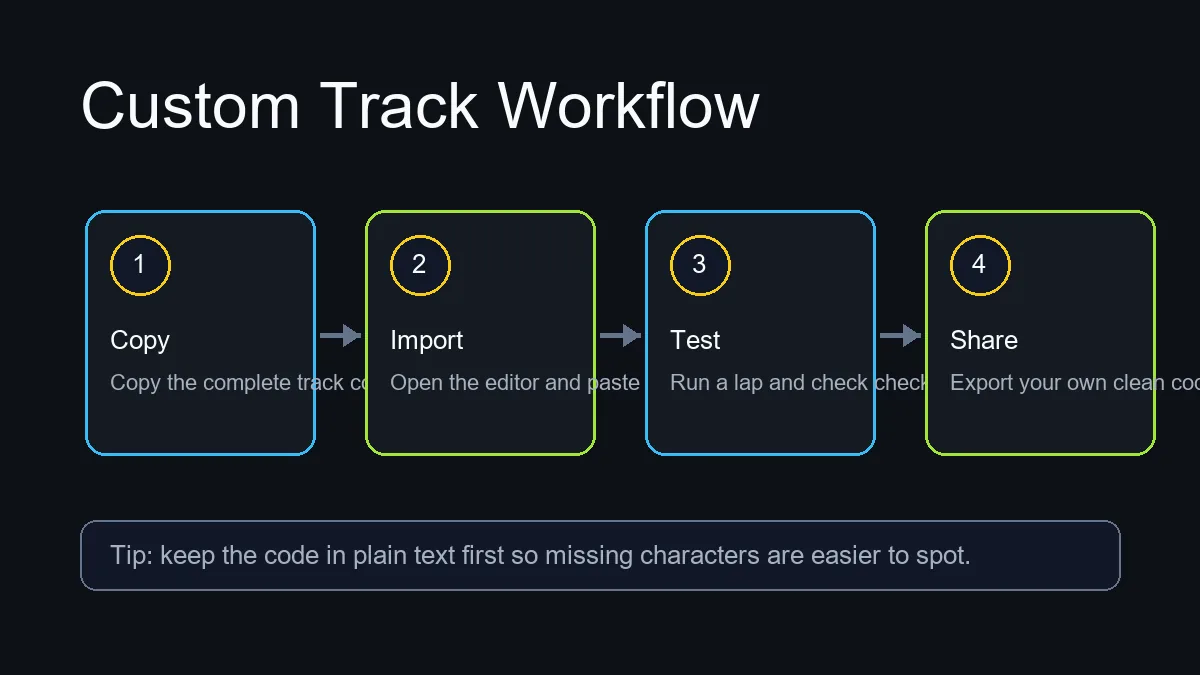
Copy the complete code
Use the original source when possible. Copy the whole track string, then paste it into a plain-text note first so line breaks, missing endings, or extra labels are easy to see.
Open the matching PolyTrack build
Start from the version where you normally play. If a creator mentions a version, mirror, or modded build, expect small differences and keep the official Kodub source as your reference point.
Import before racing seriously
Paste the code into the editor or custom track import area, load the map, and drive a short test lap. Check that the start, checkpoints, jumps, and finish trigger behave correctly.
Save useful notes
If the map works, record the title, difficulty, source, and version. If it fails, do not keep retrying the same copied text; return to the source and look for an updated code.
Search fit
Which PolyTrack track search fits this guide?
Similarweb showed low-difficulty demand around PolyTrack tracks, custom tracks, misspellings, and import wording. Keep each intent in the right place so this page stays focused on maps and codes.
| Candidate query | Intent | Page action |
|---|---|---|
| polytrack tracks | Find playable custom maps or understand the track system. | Covered here with map types, import workflow, and troubleshooting. |
| polytrack custom tracks | Find or create community-made layouts. | Use the custom-map sections and FAQ; keep the editor-building deep dive on the editor page. |
| import poly track | Paste a shared code and make it load. | Support with import steps and plain-text copy checks. |
| polytrak / poltrack | Misspelled navigational search for the game. | Mention naturally only where helpful; do not shift this page away from tracks. |
| polytrack unblocked | Play access on blocked networks. | Keep as a future/access intent handled by the unblocked page, not this guide. |
| where to find PolyTrack custom maps | Discovery: find usable community track codes without confusing mirrors with official sources. | Use trusted creator/community references, copy the complete code, then test spawn, checkpoints, and finish before saving. |
| poly track | Spacing variant for the same game and track search. | Use naturally in supporting copy; keep this guide focused on tracks, maps, and codes. |
Fixes
Why a PolyTrack track code may not work
Broken imports are common with long shared strings. Check these issues before assuming the game itself is broken.
Truncated code
Messaging apps and comment boxes can cut long strings. Recopy from the original page and compare the beginning and ending characters.
Version mismatch
A map created in one PolyTrack build may not behave the same in another mirror, especially when stunt physics or editor pieces changed.
Missing checkpoints
The route may load but fail as a race if checkpoints, spawn direction, or finish logic were placed incorrectly.
Suspicious source
Avoid pages that require installers, extensions, or unusual permissions for a text-based track import.
FAQ
PolyTrack Tracks FAQ
What is a PolyTrack track code?
A PolyTrack track code is a long text string that stores the layout of a custom map. Players copy the code, paste it into the editor or import area, and load the track inside the game.
Are PolyTrack custom tracks safe?
A normal track code is just text for the game to interpret. Treat it as safer than a download, but still use trusted pages and avoid sources that ask for installers, extensions, or extra permissions.
Why does my PolyTrack map fail to import?
The most common reasons are missing characters, extra formatting, version mismatch, or a code copied from a modded build. Recopy the source text and test it in the version where it was created.
What PolyTrack tracks should beginners try first?
Start with easy flow tracks or medium full-speed maps. Avoid extreme precision, loop-heavy, or impossible maps until you are comfortable with steering, braking, jumping, and fast restarts.
Can I make my own PolyTrack custom track?
Yes. Use the in-game editor to build a short route, place checkpoints and a finish, test the full lap, then export the code and share it with difficulty and version notes.
Where can I find PolyTrack custom tracks?
Start with trusted community pages, creator posts, and track-code collections that show the code as plain text. Prefer sources that include a map name, difficulty note, version context, and comments from players who tested the import.
Should PolyTrack track codes be downloaded?
No. A normal PolyTrack custom track is shared as text that you paste into the game or editor. If a page turns a track code into an installer, extension, or permission-heavy download, leave it and use another source.
Where can I find PolyTrack custom tracks and maps?
Start with track codes shared by identifiable creators or established PolyTrack communities. Prefer posts that show the map, version, and full code. After importing, test the spawn point, every checkpoint, and the finish before keeping or resharing the track.
Where can I find PolyTrack map codes?
Look for identifiable creators, established PolyTrack communities, or pages that show the map name, difficulty, version, and complete code. After importing, test the spawn, checkpoints, and finish before saving or resharing the map.